> ## Documentation Index
> Fetch the complete documentation index at: https://kive.ai/docs/llms.txt
> Use this file to discover all available pages before exploring further.
# Search your library
> Find assets quickly with AI-powered search
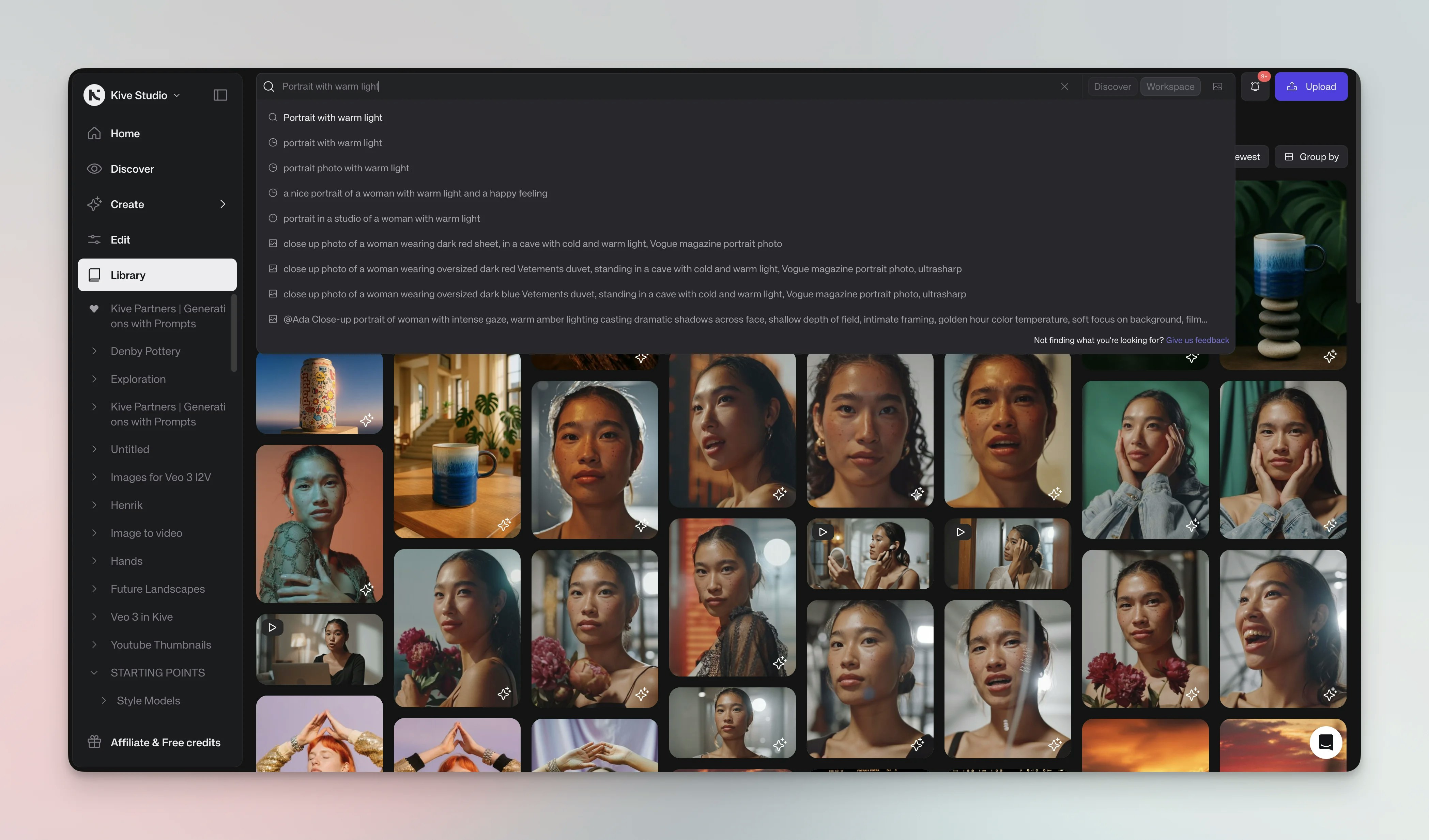
Kive's search understands the content of your images and videos. Type natural language like 'red dress in a forest' or 'warm studio lighting' instead of exact filenames. Describe what you're looking for and the AI finds it — by subject, style, color, or concept.
 ## Use search
Type natural descriptions in the search bar to find assets. No exact filenames or manual tags needed.
Try descriptive searches like "sunset over mountains with orange sky" or
"minimalist logo on white background"
## Search by image
To find similar images, click the camera icon in the search bar and upload a reference image or pick one from your library. Kive will return visually similar assets.
1. Click the **camera icon** in the search bar 2. Upload a reference image
or select from your library 3. Browse visually similar results
1. Hover over an asset and open the **...** menu 2. Choose **Search similar
items** 3. Browse results that match the style and content
## Filters
Click **Filter** to refine results by:
* Item type (images, videos, GIFs)
* Color
* Upload source
* Added by (team members)
* Custom properties
* Board associations
Combine filters to find exactly what you need — for example, generated images
in specific colors, uploads from particular teammates, assets with certain
properties, or items from specific boards.
Organize and manage your found content
Learn how to add new content to your library
## Use search
Type natural descriptions in the search bar to find assets. No exact filenames or manual tags needed.
Try descriptive searches like "sunset over mountains with orange sky" or
"minimalist logo on white background"
## Search by image
To find similar images, click the camera icon in the search bar and upload a reference image or pick one from your library. Kive will return visually similar assets.
1. Click the **camera icon** in the search bar 2. Upload a reference image
or select from your library 3. Browse visually similar results
1. Hover over an asset and open the **...** menu 2. Choose **Search similar
items** 3. Browse results that match the style and content
## Filters
Click **Filter** to refine results by:
* Item type (images, videos, GIFs)
* Color
* Upload source
* Added by (team members)
* Custom properties
* Board associations
Combine filters to find exactly what you need — for example, generated images
in specific colors, uploads from particular teammates, assets with certain
properties, or items from specific boards.
Organize and manage your found content
Learn how to add new content to your library