> ## Documentation Index
> Fetch the complete documentation index at: https://kive.ai/docs/llms.txt
> Use this file to discover all available pages before exploring further.
# Manage assets
> Download and share assets from your library, manage versions, tags, and more
Kive helps your team keep assets organized and usable. Beyond storage, you can manage versions, add metadata, share with granular permissions, and track activity. Use this guide to download, share, and control versions with confidence.
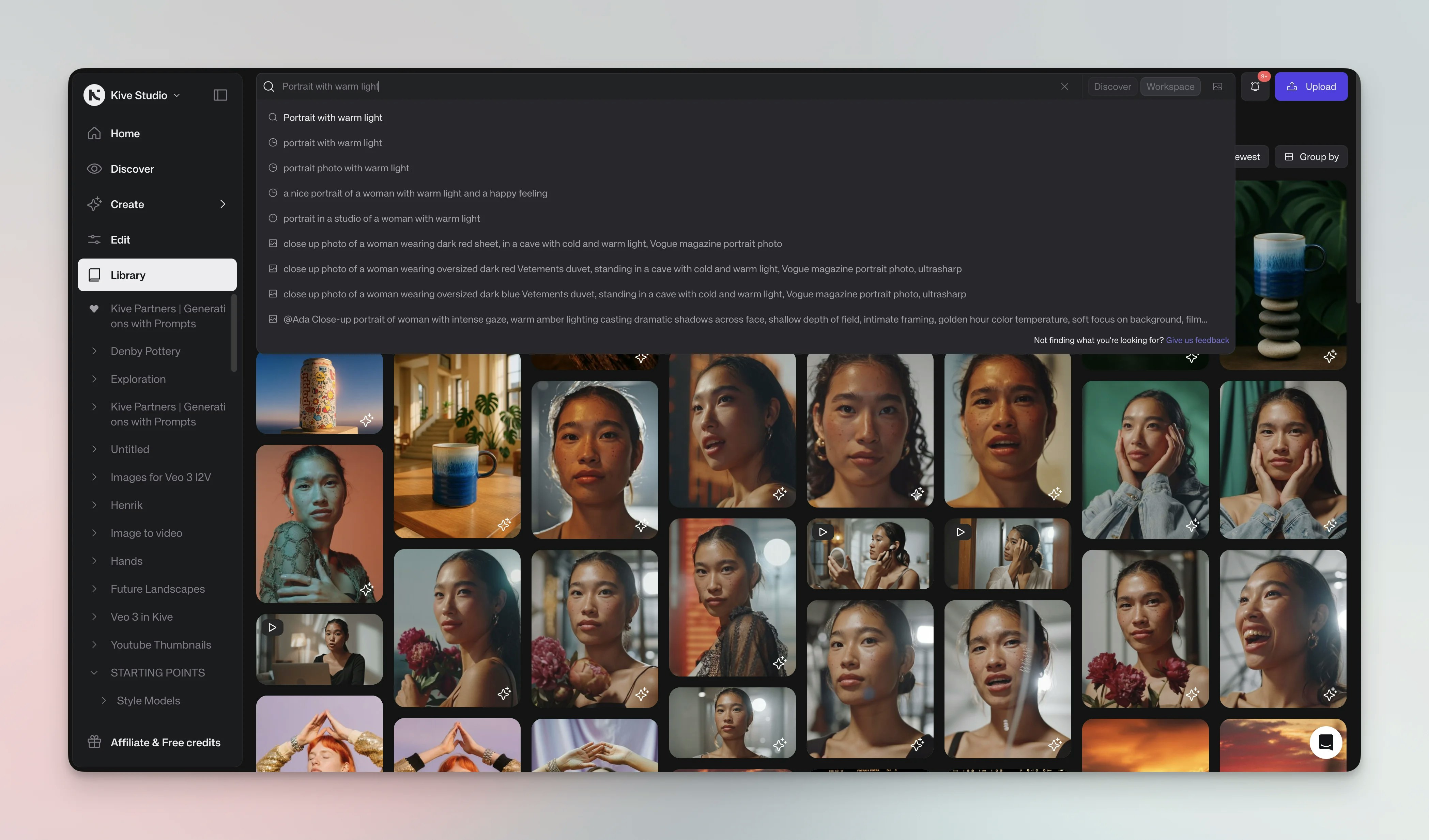 ## Download & share
Export or share single items or batches. Kive preserves full quality and metadata either way.
Open the asset and click **Download** to save it locally
Select assets, open the multi‑select bar, then click **Download** for bulk
export
Select an asset and press `Command + C`, then paste (`Command + V`) into
InDesign, Keynote, Figma, or other tools
### Share an asset
Sharing creates a unique link with customizable permissions:
1. Open the asset
2. Click **Share**
3. Set permissions in the dropdown
4. Click **Copy link**
## Delete an asset
Deleting an asset is permanent and cannot be undone. Ensure you have backups
if needed.
You can delete in three ways:
1. Open the asset → Click the **Down arrow** → **Delete**
2. From any asset card, click **...** → **Delete**
3. Select multiple assets → Use multi‑select bar → **Delete**
Pick what fits your task: delete one carefully, or clean up many at once.
Removing an asset from a board does not delete it from your library. Content
cannot be transferred between workspaces.
## Versions and editing
When you use editing tools (e.g., erase, extend, replace object), you can choose to save the edited file as a new version of the asset. View all versions in the **Versions** tab on the asset page; set a version as active or delete unwanted versions.
* **View versions**: Open an asset → Click **Versions**
* **Set active version**: Click **...** → **Set as active version**
* **Delete version**: Click **...** → **Delete version**
* **Save edits as new version**: When editing, click **Save as new version**
Deleting a version or an asset is permanent. Removing an item from a board
doesn't delete it from your library.
## Custom properties & tags
## Download & share
Export or share single items or batches. Kive preserves full quality and metadata either way.
Open the asset and click **Download** to save it locally
Select assets, open the multi‑select bar, then click **Download** for bulk
export
Select an asset and press `Command + C`, then paste (`Command + V`) into
InDesign, Keynote, Figma, or other tools
### Share an asset
Sharing creates a unique link with customizable permissions:
1. Open the asset
2. Click **Share**
3. Set permissions in the dropdown
4. Click **Copy link**
## Delete an asset
Deleting an asset is permanent and cannot be undone. Ensure you have backups
if needed.
You can delete in three ways:
1. Open the asset → Click the **Down arrow** → **Delete**
2. From any asset card, click **...** → **Delete**
3. Select multiple assets → Use multi‑select bar → **Delete**
Pick what fits your task: delete one carefully, or clean up many at once.
Removing an asset from a board does not delete it from your library. Content
cannot be transferred between workspaces.
## Versions and editing
When you use editing tools (e.g., erase, extend, replace object), you can choose to save the edited file as a new version of the asset. View all versions in the **Versions** tab on the asset page; set a version as active or delete unwanted versions.
* **View versions**: Open an asset → Click **Versions**
* **Set active version**: Click **...** → **Set as active version**
* **Delete version**: Click **...** → **Delete version**
* **Save edits as new version**: When editing, click **Save as new version**
Deleting a version or an asset is permanent. Removing an item from a board
doesn't delete it from your library.
## Custom properties & tags
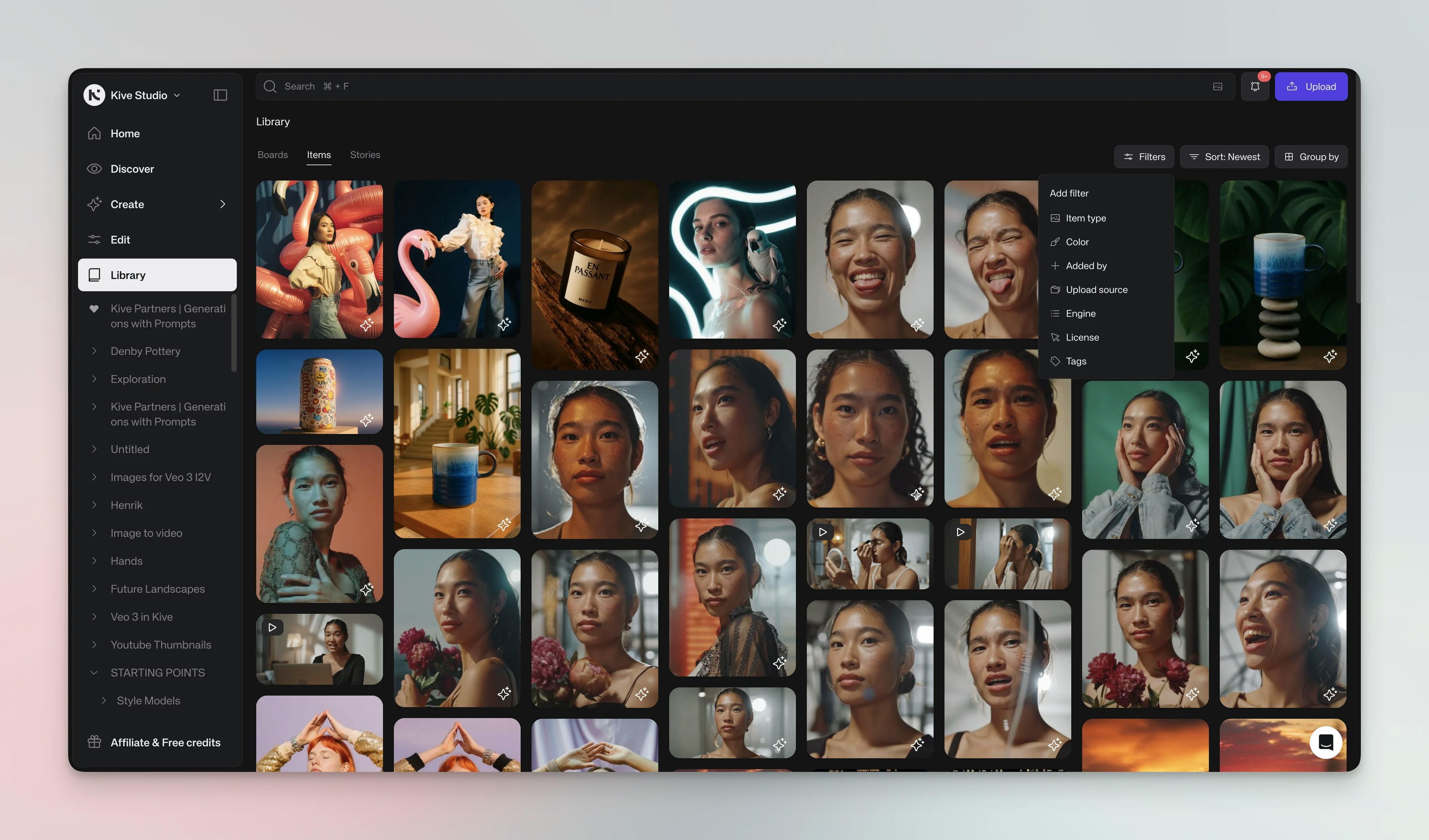 You can add custom properties under the **Properties** tab; define fields like 'Client name' or 'Campaign' and assign them to assets for easier filtering. Add them individually or in bulk:
1. Click the **Properties** tab when viewing an asset
2. Choose predefined properties or click **Add Properties** to create custom ones
3. Use the multi‑select bar to add properties to multiple assets at once
All workspace properties can be managed in **Settings** → **Custom Properties**.
## Comments & mentions
Keep feedback with the work. Comments and mentions help teams collaborate without losing context:
* Click the **Comments** tab and type your message
* Mention teammates by typing **@** followed by their name
* View the full discussion in the asset's history
* See all comments across an asset by clicking the **Comment** icon button
## Asset information
The **Info** tab shows metadata about each asset so you can see origins and usage across your workspace:
* Original filename
* File size and type
* Creation date
* Boards and sources
* AI‑generated tags
* Original prompt (for AI‑generated images)
## Prompts
AI‑generated assets retain their creation prompts for future reference. This helps you reproduce consistent styles:
* Reuse the original prompt in new generations
* Reference the same prompt settings to maintain a consistent style in future images
## Activity tracking
The **Activity** tab maintains a complete audit trail for each asset so you can track usage across your team:
* Creation date
* Edits and modifications
* Downloads
* Comments and mentions
* Version changes
This history helps teams understand how assets evolve, track usage patterns across projects, and see who accessed or modified content.
## Related resources
Learn how to import content into your library
Organize assets into collaborative collections
Find assets quickly with smart search
Configure properties and permissions
You can add custom properties under the **Properties** tab; define fields like 'Client name' or 'Campaign' and assign them to assets for easier filtering. Add them individually or in bulk:
1. Click the **Properties** tab when viewing an asset
2. Choose predefined properties or click **Add Properties** to create custom ones
3. Use the multi‑select bar to add properties to multiple assets at once
All workspace properties can be managed in **Settings** → **Custom Properties**.
## Comments & mentions
Keep feedback with the work. Comments and mentions help teams collaborate without losing context:
* Click the **Comments** tab and type your message
* Mention teammates by typing **@** followed by their name
* View the full discussion in the asset's history
* See all comments across an asset by clicking the **Comment** icon button
## Asset information
The **Info** tab shows metadata about each asset so you can see origins and usage across your workspace:
* Original filename
* File size and type
* Creation date
* Boards and sources
* AI‑generated tags
* Original prompt (for AI‑generated images)
## Prompts
AI‑generated assets retain their creation prompts for future reference. This helps you reproduce consistent styles:
* Reuse the original prompt in new generations
* Reference the same prompt settings to maintain a consistent style in future images
## Activity tracking
The **Activity** tab maintains a complete audit trail for each asset so you can track usage across your team:
* Creation date
* Edits and modifications
* Downloads
* Comments and mentions
* Version changes
This history helps teams understand how assets evolve, track usage patterns across projects, and see who accessed or modified content.
## Related resources
Learn how to import content into your library
Organize assets into collaborative collections
Find assets quickly with smart search
Configure properties and permissions