> ## Documentation Index
> Fetch the complete documentation index at: https://kive.ai/docs/llms.txt
> Use this file to discover all available pages before exploring further.
# Remove background
> Instantly isolate subjects with AI-powered background removal for transparent PNGs
Remove backgrounds instantly with AI that automatically detects subjects and creates clean transparent PNGs. Perfect for compositing, product photography, and design work.
## Prerequisites
Ensure you have an image in your Library and available credits. The tool supports JPEG, PNG, HEIC, TIFF, WebP, and GIF formats.
## How it works
The AI identifies subjects and separates them from backgrounds automatically, handling edge detection, hair details, and complex boundaries without manual selection.
## Visual examples
 *Original image with background*
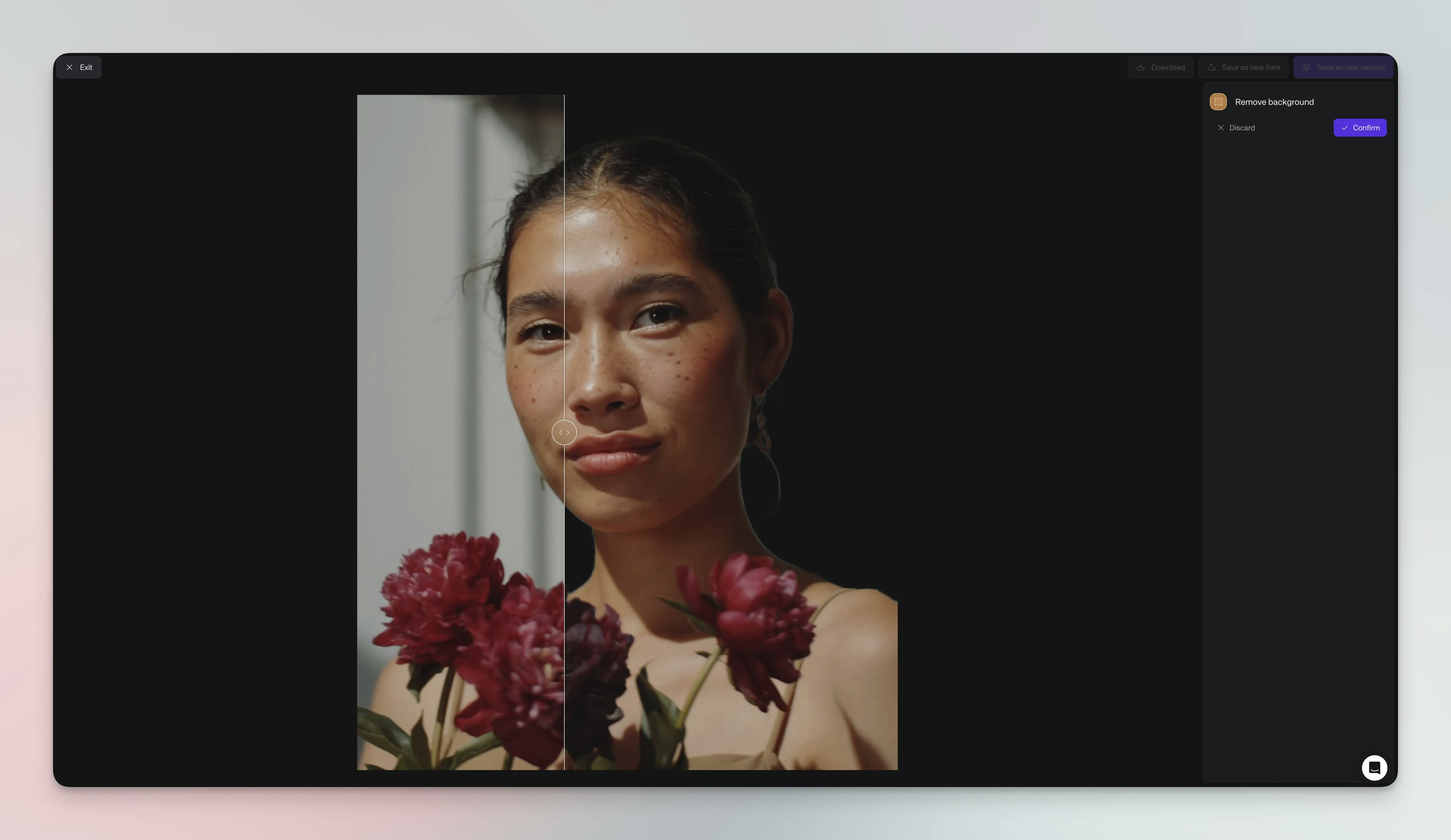 *Clean cutout with transparent background*
## Steps
Navigate to the image in your Library or board and click to open it in
detail view
Click the **Remove Background** icon in the vertical toolbar, or access via
the Edit section
Click **Remove Background** from the tools menu
The AI will process your image (typically takes \~15 seconds)
Preview the transparent result with a checkerboard pattern showing
transparency
Click **Save** to add the transparent version to your Library as a new PNG
file
The original image remains unchanged. Background removal creates a new version
saved separately.
## Results
The tool preserves main subjects, fine details like hair and fabric edges, semi-transparent elements, and complex boundaries.
Output creates PNG files with full alpha channel transparency, matching original resolution with lossless compression.
## Use cases
Common applications span e-commerce, creative design, and professional photography.
**E-commerce** - Create clean catalog images for storefronts, marketing materials, and white background requirements.
**Design** - Isolate subjects for social media graphics, marketing collages, and digital art projects.
**Portraits** - Prepare headshots for team directories, LinkedIn profiles, and virtual backgrounds.
## Tips
For best results, use high-contrast images with clear subject-background separation, good lighting, and sharp focus. Higher resolution yields better detail preservation.
Challenges arise with similar subject-background colors, complex patterns, or transparent objects like glass that require extra processing.
For images with challenging backgrounds, try using the **Erase** tool
first to remove distracting elements before removing the entire background.
## Credit usage
| Quality Setting | Credits per Image |
| ---------------- | ------------------ |
| Standard removal | 1 credit |
| Batch processing | 1 credit per image |
Free plans include limited credits. Monitor your usage in **Settings →
Subscription**.
## Work with transparent images
After removal, download transparent PNGs for external use, save to boards, or apply additional edits while preserving transparency.
Combine with other tools: use Change Background to add new backdrops, Extend to expand area, or Generate Image with transparent references.
## Troubleshooting
**Edge Issues** - Ensure sufficient resolution and contrast. Use Erase for manual refinement if needed.
**Partial Removal** - Complex patterns or thin elements may confuse AI. Try source images with clearer definition.
**Performance** - Use images under 10MB with stable internet for faster processing.
## See also
Add new backgrounds to your isolated subjects
Remove specific elements before background removal
Explore all editing tools and credit costs
*Clean cutout with transparent background*
## Steps
Navigate to the image in your Library or board and click to open it in
detail view
Click the **Remove Background** icon in the vertical toolbar, or access via
the Edit section
Click **Remove Background** from the tools menu
The AI will process your image (typically takes \~15 seconds)
Preview the transparent result with a checkerboard pattern showing
transparency
Click **Save** to add the transparent version to your Library as a new PNG
file
The original image remains unchanged. Background removal creates a new version
saved separately.
## Results
The tool preserves main subjects, fine details like hair and fabric edges, semi-transparent elements, and complex boundaries.
Output creates PNG files with full alpha channel transparency, matching original resolution with lossless compression.
## Use cases
Common applications span e-commerce, creative design, and professional photography.
**E-commerce** - Create clean catalog images for storefronts, marketing materials, and white background requirements.
**Design** - Isolate subjects for social media graphics, marketing collages, and digital art projects.
**Portraits** - Prepare headshots for team directories, LinkedIn profiles, and virtual backgrounds.
## Tips
For best results, use high-contrast images with clear subject-background separation, good lighting, and sharp focus. Higher resolution yields better detail preservation.
Challenges arise with similar subject-background colors, complex patterns, or transparent objects like glass that require extra processing.
For images with challenging backgrounds, try using the **Erase** tool
first to remove distracting elements before removing the entire background.
## Credit usage
| Quality Setting | Credits per Image |
| ---------------- | ------------------ |
| Standard removal | 1 credit |
| Batch processing | 1 credit per image |
Free plans include limited credits. Monitor your usage in **Settings →
Subscription**.
## Work with transparent images
After removal, download transparent PNGs for external use, save to boards, or apply additional edits while preserving transparency.
Combine with other tools: use Change Background to add new backdrops, Extend to expand area, or Generate Image with transparent references.
## Troubleshooting
**Edge Issues** - Ensure sufficient resolution and contrast. Use Erase for manual refinement if needed.
**Partial Removal** - Complex patterns or thin elements may confuse AI. Try source images with clearer definition.
**Performance** - Use images under 10MB with stable internet for faster processing.
## See also
Add new backgrounds to your isolated subjects
Remove specific elements before background removal
Explore all editing tools and credit costs