> ## Documentation Index
> Fetch the complete documentation index at: https://kive.ai/docs/llms.txt
> Use this file to discover all available pages before exploring further.
# Generate a video
> Create a video clip from a text prompt, an existing product or a start frame
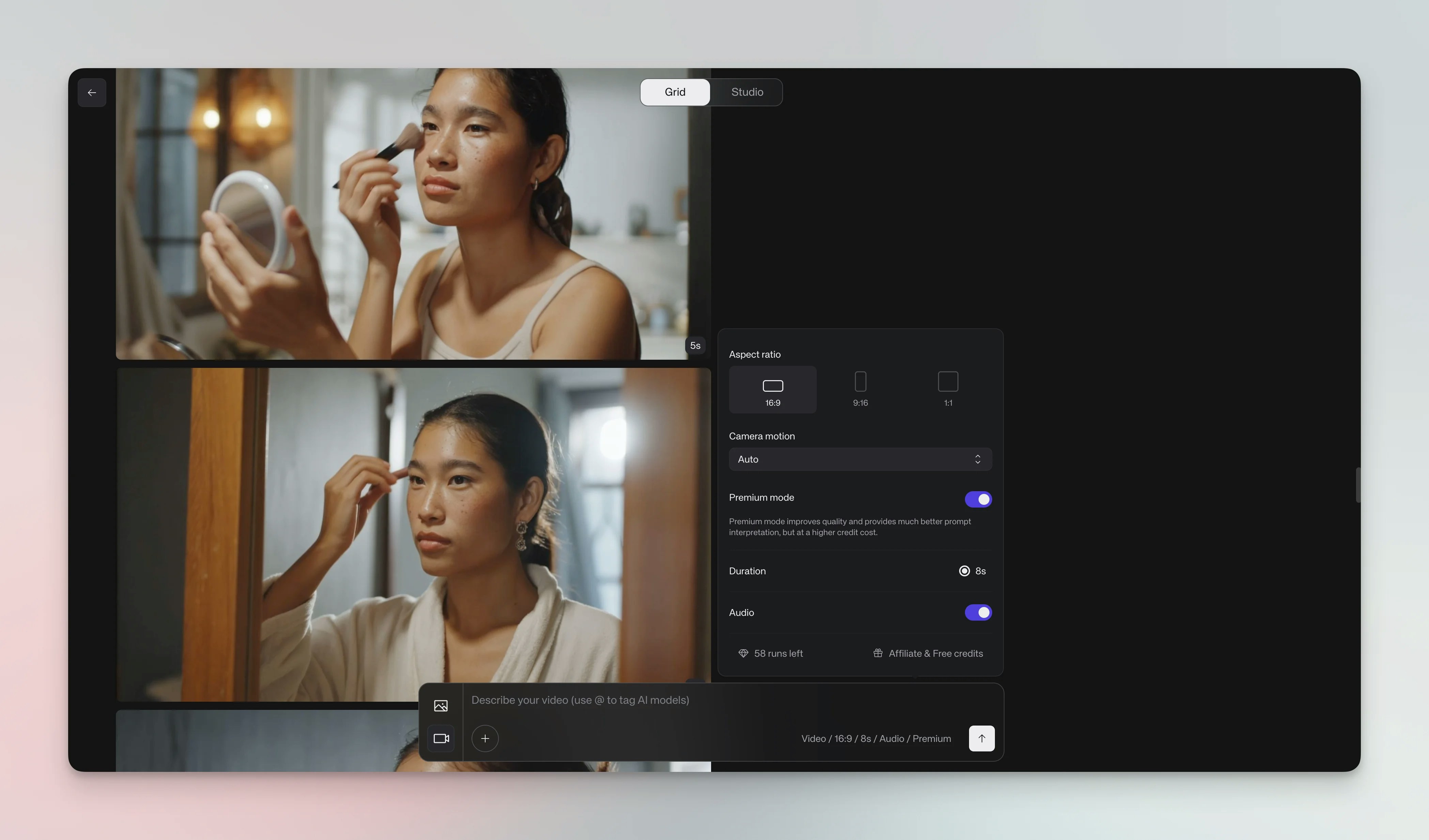
Kive's video generator turns a short prompt into a video clip. You can generate short video clips in full HD, and even generate with sound. When you switch to Video mode, the generation bar updates with video-specific controls including duration, sound toggle, and start/end frame uploads.
 ## Steps
From the **Home dashboard** or generator, click **Create → Video**. You can
also switch to **Video** mode from the image generator.
Describe where the scene starts, what happens over time, and how it ends. Include camera movements directly in your prompt (e.g., "camera zooms in", "pan left").
## Steps
From the **Home dashboard** or generator, click **Create → Video**. You can
also switch to **Video** mode from the image generator.
Describe where the scene starts, what happens over time, and how it ends. Include camera movements directly in your prompt (e.g., "camera zooms in", "pan left").
Example: "Product bottle spins slowly on a pedestal, camera zooms
in, liquid pours out elegantly."
Above the prompt input, click **Start frame** or **End frame** to upload reference images. This locks in your start and end states for precise control over the video's composition.
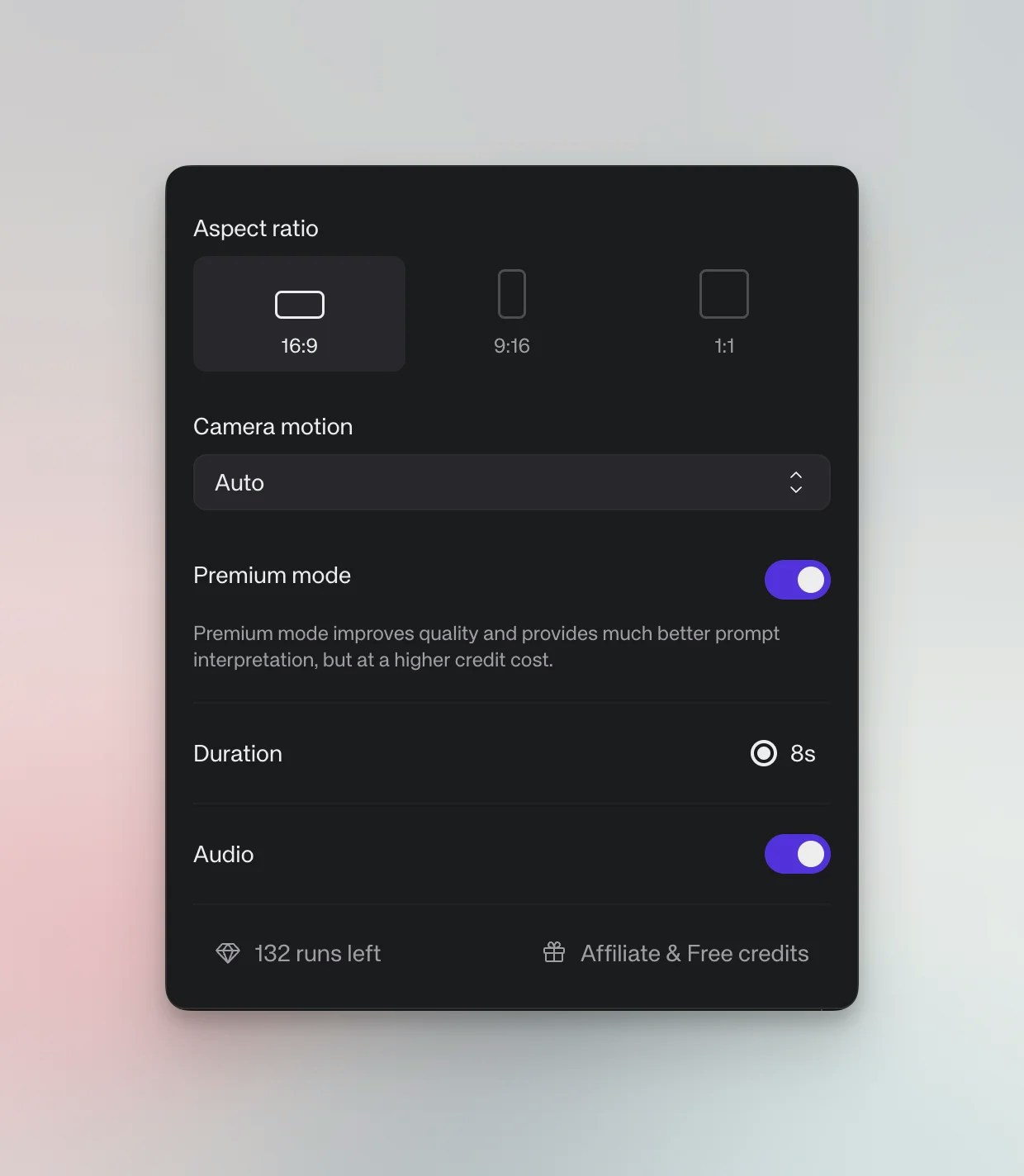
The generation bar shows video-specific controls:
* **Aspect ratio** — choose from 21:9, 16:9, 4:3, 1:1, 3:4, or 9:16. Premium and Max quality support 16:9, 1:1, and 9:16 only
* **Duration** — select from 4 to 12 seconds in Default quality, or 4 to 15 seconds in Premium and Max quality
* **Sound** — toggle audio on or off (speaker icon). When enabled, the AI generates synchronized dialogue and sound effects in Premium and Max modes
* **Quality** — Default, Premium, or Max (Premium recommended for best results)
 Click the arrow button (↑) to start rendering. This takes about a minute.
Generated videos first appear in your personal drafts feed, visible only to you. To share with workspace members, save the video to your library or a board by clicking the **Save** button on the video.
## Prompting structure
Start by setting the scene — where are we, and what's the mood? Then describe actions in order, since earlier words happen earlier in the clip. In **Premium** and **Max** modes, you can generate videos with synchronized dialogue and sound effects. Include dialogue in quotes (e.g., `character says "Hello"`) to add speech to your videos.
## Studio integration
Use studios to style videos just like images. Pick a studio for lighting and composition, then write a concise prompt. Camera motion works independently of the studio preset.
## Limits
* Video durations: 4–12 seconds (Default) or 4–15 seconds (Premium / Max)
* No video‑to‑video editing for now (audio is available in Premium and Max modes)
* Single video per generation (no multi‑variation grid)
* Bulk create is not available in video mode
**Premium video (no audio) model update — January 27, 2026**
We've updated the Premium video generation model (without audio). Key improvements:
* **Better product consistency** — products maintain their appearance throughout the video
* **Improved fine details** — logos, text, and small features render more accurately
* **Text consistency** — text on products stays readable and stable
* **First frame and end frame support** — lock in your start and end states for more control
## Tips
Tip: Plan your narrative — opening, movement, ending — before you generate.
Tip: Use **Zoom in** for product highlights and **Pan** for wide environments.
Tip: Combine with studios for consistent style across campaigns.
Tip: Use longer durations like 8 seconds for better quality results.
Tip: When using products in your video, generate one scene at a time for best results.
## Troubleshooting
Upgrade recommended: Video generation is available on the Basic plan, but Pro is recommended for video-heavy workflows since videos consume more credits than images.
Looks poor or fails: Simplify the prompt, use Premium generation mode, try a different camera motion, or use a studio preset.
Not enough credits: Raise your credit limit in **Settings → Subscription**.
## See also
* [Create AI videos with synchronized sound](/guides/ai-videos-with-sound)
* [Master AI studios for production-grade visuals](/guides/ai-studios)
Click the arrow button (↑) to start rendering. This takes about a minute.
Generated videos first appear in your personal drafts feed, visible only to you. To share with workspace members, save the video to your library or a board by clicking the **Save** button on the video.
## Prompting structure
Start by setting the scene — where are we, and what's the mood? Then describe actions in order, since earlier words happen earlier in the clip. In **Premium** and **Max** modes, you can generate videos with synchronized dialogue and sound effects. Include dialogue in quotes (e.g., `character says "Hello"`) to add speech to your videos.
## Studio integration
Use studios to style videos just like images. Pick a studio for lighting and composition, then write a concise prompt. Camera motion works independently of the studio preset.
## Limits
* Video durations: 4–12 seconds (Default) or 4–15 seconds (Premium / Max)
* No video‑to‑video editing for now (audio is available in Premium and Max modes)
* Single video per generation (no multi‑variation grid)
* Bulk create is not available in video mode
**Premium video (no audio) model update — January 27, 2026**
We've updated the Premium video generation model (without audio). Key improvements:
* **Better product consistency** — products maintain their appearance throughout the video
* **Improved fine details** — logos, text, and small features render more accurately
* **Text consistency** — text on products stays readable and stable
* **First frame and end frame support** — lock in your start and end states for more control
## Tips
Tip: Plan your narrative — opening, movement, ending — before you generate.
Tip: Use **Zoom in** for product highlights and **Pan** for wide environments.
Tip: Combine with studios for consistent style across campaigns.
Tip: Use longer durations like 8 seconds for better quality results.
Tip: When using products in your video, generate one scene at a time for best results.
## Troubleshooting
Upgrade recommended: Video generation is available on the Basic plan, but Pro is recommended for video-heavy workflows since videos consume more credits than images.
Looks poor or fails: Simplify the prompt, use Premium generation mode, try a different camera motion, or use a studio preset.
Not enough credits: Raise your credit limit in **Settings → Subscription**.
## See also
* [Create AI videos with synchronized sound](/guides/ai-videos-with-sound)
* [Master AI studios for production-grade visuals](/guides/ai-studios)